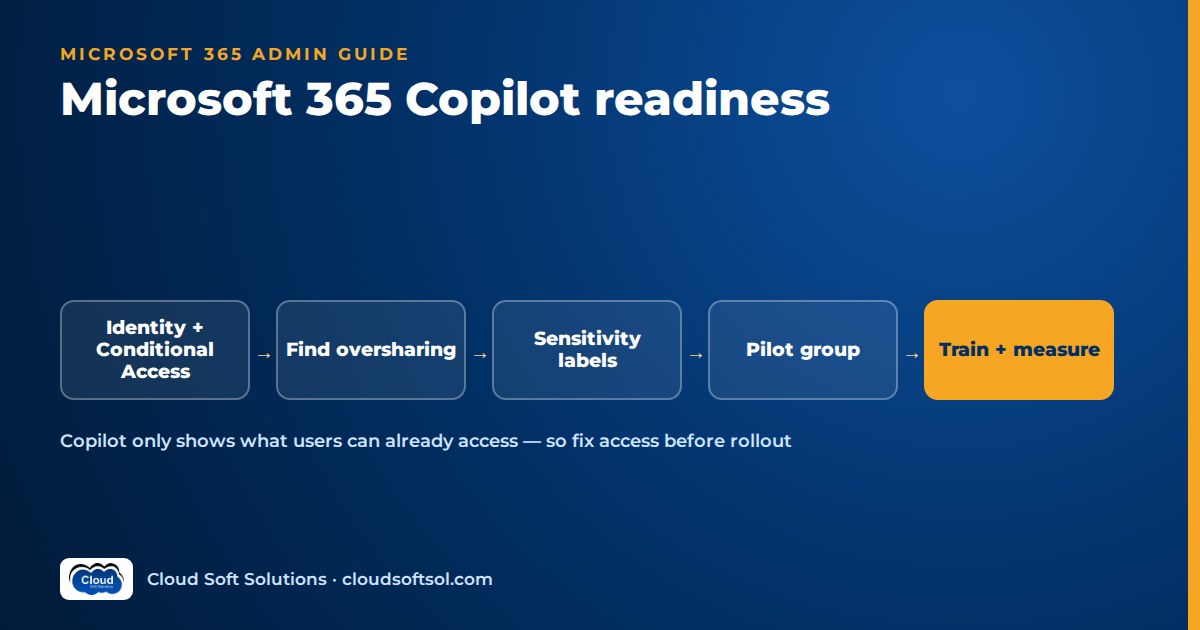
Microsoft 365 Copilot readiness is mostly about access hygiene, not about AI. Copilot answers using content the signed-in user can already open: their mail, chats, meetings and files, plus SharePoint, OneDrive and Teams content they have permission to. Copilot does not create new access, but it makes existing oversharing easy to find, so the work that matters before rollout is fixing identity, permissions, labels and devices, then piloting with a well-chosen group. This guide gives IT admins a checklist, a remediation method for oversharing and the mistakes to avoid.
A note on names: Microsoft renames and repackages admin features often. This article describes capabilities (what a control does) rather than exact menu paths or SKU names. Before you act on any item, check the current Microsoft Learn documentation for Copilot, SharePoint, Entra ID, Intune and Purview.
The core principle: Copilot respects permissions, so oversharing becomes visible
When a user asks Copilot a question, it retrieves relevant content through Microsoft Graph on that user's behalf and uses it to ground the answer. The retrieval is security-trimmed: if the user cannot open a document, Copilot cannot use it in their answer. Sensitivity labels that apply encryption are also honoured, so content the user has no usage rights to extract is not used.
That sounds reassuring, and it is, as far as it goes. The problem is that most tenants have years of permissions that nobody would approve if asked today:
- A finance team site shared with an "everyone except external users" style group during a migration and never tightened.
- Public Teams teams, which make the connected SharePoint site readable by anyone in the organisation.
- Organisation-wide sharing links on salary sheets, board decks or HR investigation notes.
- Sites owned by people who left two reorganisations ago.
Before Copilot, this content was accessible but practically hidden. With Copilot, an innocent prompt such as "summarise what we know about next year's pay revisions" can surface it in seconds. Technically nothing has leaked, because the user was always allowed to open the file, but the business sees a leak and the project gets paused. Readiness work prevents that.
Microsoft 365 Copilot readiness checklist
Use this table as your Copilot deployment checklist. The "minimum before pilot" column is what you should not skip; the "before broad rollout" column can run in parallel with the pilot.
| Area | Minimum before pilot | Before broad rollout | Typical owner |
|---|---|---|---|
| Identity (Entra ID) | MFA for all users, Conditional Access baseline, disabled leavers, reviewed admin roles | Phishing-resistant MFA for admins, guest access reviews, group-based licensing | Identity / Entra admin |
| Data access (SharePoint, OneDrive, Teams) | Find and fix the most sensitive overshared sites; review broad-group permissions | Site owner attestation, sharing-link defaults tightened, stale site lifecycle | SharePoint admin with site owners |
| Classification (Purview) | Sensitivity label taxonomy published; labels on known high-risk libraries | Default labels, auto-labelling where licensed, DLP for AI scenarios | Compliance / security |
| Devices (Intune) | Compliance policies for pilot devices; app protection for mobile | Compliance-based Conditional Access for all Copilot clients | Endpoint / Intune admin |
| Licensing and apps | Qualifying base licences confirmed; pilot clients on a supported update channel | Licence assignment via groups; channel strategy for the whole fleet | M365 admin / endpoint team |
| Retention and audit | Audit logging confirmed on; know where Copilot interactions are recorded | Retention policy for Copilot interactions agreed with legal | Compliance / legal |
| Pilot design | Cross-functional pilot group with named champions | Wave plan by department with entry criteria | Project lead |
| Training and AUP | Acceptable-use policy signed off; pilot training session | Role-based prompt guidance, support runbook for the service desk | HR, IT, change management |
| Adoption measurement | Baseline survey and success criteria per role | Usage reporting reviewed monthly; licence reallocation process | Project lead / business owners |
Identity: Entra ID hygiene, MFA and Conditional Access
If an attacker takes over an account, Copilot becomes a fast search tool for everything that account can reach, so identity work comes first:
- Enforce MFA everywhere, ideally through Conditional Access policies rather than legacy per-user settings. Block legacy authentication.
- Clean up accounts: disable leavers promptly, find accounts that have not signed in for a long time, and check shared mailboxes and service accounts that can sign in interactively.
- Review guests. Guest users with access to internal teams are a common blind spot. Use access reviews for guests and for membership of sensitive groups.
- Tidy groups. Microsoft 365 groups and security groups drive SharePoint and Teams access. Ownerless groups and nested groups that nobody understands are an oversharing source in their own right.
If your Entra ID foundations are weak, fix them before anything else. Our Microsoft Entra ID course covers Conditional Access design, access reviews and identity governance in lab form.
Data access: SharePoint, OneDrive and Teams oversharing
Most of the effort goes here (the next section gives a full method). The usual offenders are broad built-in groups ("everyone", "everyone except external users" and similar) on sites or libraries, public teams, organisation-wide and "anyone" sharing links, broken inheritance on folders, and stale ownerless sites. Some SharePoint reporting features have historically sat in an add-on (SharePoint Advanced Management) and licensing has changed, so check what your tenant includes today.
Data classification and sensitivity labels
Microsoft Purview sensitivity labels let you mark content as, for example, Public, Internal, Confidential or Highly Confidential. For Copilot readiness, labels matter in three ways. Labels that apply encryption restrict who can use the content, and Copilot honours those usage rights. Content Copilot generates from labelled sources can inherit the label, so a summary of a confidential file stays confidential. And Purview data loss prevention capabilities have been extended to AI scenarios, including options to restrict Copilot from processing content with specific labels. Feature names and scope change, so confirm current behaviour in the Purview docs before relying on any one control.
Device management with Intune
Copilot runs inside Microsoft 365 apps on Windows, macOS, the web and mobile. Intune gives you the device side of Conditional Access: compliance policies (encryption, OS version, threat protection) that Conditional Access can require, app protection policies on iOS and Android that stop users copying Copilot output into personal apps, and configuration of Microsoft 365 Apps itself, including update channel. For unmanaged or personal devices, decide explicitly whether Copilot is browser-only with session controls, limited to app-protected mobile apps, or blocked.
Licensing and app update channels
Copilot is licensed per user as an add-on to qualifying Microsoft 365 or Office 365 plans; the qualifying list has changed several times, so verify it with your licensing partner or the current service description. On the client side, Copilot features arrive through Microsoft 365 Apps updates, and support for update channels has evolved since launch. Check which channels currently receive Copilot features, and make sure pilot devices are on one of them.
Retention and audit
Copilot prompts and responses are recorded in the unified audit log, and Purview retention policies can cover Copilot interactions alongside Teams chats. Agree with legal and compliance how long to keep them, who can search them through eDiscovery, and how insider-risk or communication-compliance policies will treat them. Decide this before the pilot, not after the first HR request to search someone's Copilot history.
Pilot group design
Pick a pilot that is diverse and forgiving: a few people from finance, HR, sales, operations and IT; managers and individual contributors; heavy meeting users and heavy document users. Name a champion in each group to collect feedback and report surprising content.
User training and acceptable-use policy
Users need to know three things: Copilot can be wrong and they own what they send; Copilot only shows what they could already access, so if it surfaces something they should not see, they report it rather than share it; and which data they must not paste into Copilot or other AI tools. Put this in a short acceptable-use policy that fits under your broader enterprise AI governance framework.
Measuring adoption
Microsoft provides Copilot usage reporting in the Microsoft 365 admin center and a richer Copilot dashboard through Viva Insights (availability depends on licensing). Usage counts tell you who is active; they do not tell you whether work got better. Pair them with a baseline survey before the pilot and task-level measures afterwards: time to produce a meeting summary, time to first draft of a proposal, service desk tickets about Copilot.
How to fix Copilot oversharing in SharePoint: find, prioritise, fix owners, govern
Find  -->  Prioritise  -->  Fix owners  -->  Govern
 |            |               |               |
reports    sensitivity     site owners     policies,
& scans    x exposure      attest/fix      reviews,
                                           lifecycle
1. Find
Run SharePoint's data access governance style reports for sites shared with broad groups, sites with many organisation-wide or anyone links, and sites with sensitivity-labelled content that is broadly shared. Export permissions with PowerShell or Graph if needed. Search for obvious keywords ("salary", "appraisal", "payroll", "termination", "M&A") as a test user with ordinary access, and see what comes back.
2. Prioritise
You will not fix every site before the pilot, so rank by sensitivity multiplied by exposure. A Highly Confidential HR library open to everyone is first. A broadly shared site of old marketing brochures can wait. Start with HR, finance, legal, executive, M&A and customer-data sites.
3. Fix with owners
Central IT should not decide alone who needs access to the finance team's documents. Find a current owner for each priority site (assign one if the site is ownerless), give them a short list of findings, and ask them to remove broad groups, replace org-wide links with specific-people links, and break up "one big site for everything" structures. Site access review features in SharePoint can push this to owners and track completion.
4. Govern
Remediation without governance decays within months. Set the default sharing link to specific people or people with existing access, restrict who can create public teams, require at least two owners per site and team, apply an inactive-site policy that asks owners to confirm or archive, and schedule recurring access reviews. SharePoint also offers controls that exclude chosen sites from organisation-wide search and Copilot discovery, or restrict a site to members of a specific group. These are useful while remediation is in progress, but treat any blanket search restriction as temporary: it reduces Copilot's usefulness and hides the underlying problem rather than fixing it.
For the security architecture side of AI deployments beyond Copilot, such as prompt injection and data exfiltration through custom agents, see our guide to AI security in the enterprise.
Illustrative scenario: preparing a mid-size company's tenant for Copilot
Consider a mid-size pharmaceutical distributor with offices in Hyderabad and Mumbai and a few thousand Microsoft 365 users. Leadership has bought Copilot licences for an initial pilot and wants a broad rollout next quarter. The two-person M365 team is asked to "turn it on".
Instead, they run a two-week readiness sprint. Identity checks show MFA is enforced but legacy authentication is still allowed for a handful of old scanners and service accounts, and several leavers from the previous year are still enabled. The SharePoint reports show the HR site from a past intranet migration granted to an everyone-style group, a public Teams team called "Leadership Offsite" with board material in its files, and many organisation-wide links on pricing spreadsheets.
They fix the HR site and the leadership team the same day with the owners on a call, then send the remaining high-priority site owners their findings with a deadline. They set a default Confidential label on the HR and finance libraries, extend Intune compliance and app protection to pilot users, and pick a pilot from sales operations, finance, HR, quality and IT rather than the leadership team.
During the pilot a sales coordinator reports that Copilot cited an old distributor-margin workbook. It was shared with an org-wide link years ago. The champion process caught it, the owner fixed it, and the incident became a training example rather than a crisis. The broad rollout goes ahead in department waves, each wave starting only after that department's sites pass review.
Common mistakes when rolling out Copilot
- Treating Copilot as a licence task. Assigning licences is the last step, not the first.
- Assuming "it respects permissions" means "it is safe". It respects the permissions you have, including the bad ones.
- Using blanket search restrictions as the permanent fix. They buy time; they do not repair access.
- IT fixing permissions without owners. Access is removed, business teams complain, and the broad group is quietly re-added.
- An executive-only pilot. Highest exposure, least representative feedback.
- Ignoring devices. Copilot output copied to an unmanaged phone is still company data.
- No retention decision. Legal asks for Copilot history and nobody knows what is kept.
Where Copilot readiness fits in an admin's career
Copilot projects have raised the profile of skills that used to be seen as routine operations. Organisations, including GCC IT teams in Hyderabad and Bengaluru and services firms running managed workplace contracts, increasingly look for admins who can design Conditional Access, run Intune compliance and app protection, clean up SharePoint permissions and explain labels to a compliance officer.
A practical path for a Windows or desktop admin:
- Strengthen the identity and infrastructure base with Windows Server training (Active Directory, group policy, hybrid identity).
- Move to cloud identity with Entra ID: Conditional Access, access reviews, privileged roles.
- Add endpoint management with the Microsoft Intune course: compliance, app protection, app deployment and update rings.
- Broaden to Azure with the Azure Administrator course for the platform side of hybrid estates.
Admins who want to go further, from configuring Microsoft's AI to building custom AI integrations on top of company identity and data, can look at how Forward Deployed Engineers work; the identity and permissions thinking in this article carries straight over. For an AI-plus-endpoint example, see the Intune endpoint troubleshooting AI agent project.
If you are an admin preparing your own tenant, the Entra ID course is a natural starting point: identity is the control that every other readiness item depends on. Classroom batches run in Ameerpet and live online; call +91 96660 19191 to book a free demo.
FAQ
Can Microsoft 365 Copilot access files a user cannot open?
No. Copilot retrieves content on behalf of the signed-in user and only uses content that user already has permission to access. The risk is that users can often access more than they should, and Copilot makes that content easy to find.
What is the first step in Microsoft 365 Copilot readiness?
Start with identity: enforce MFA through Conditional Access, block legacy authentication, disable stale accounts and review guests. Then run oversharing reports on SharePoint, OneDrive and Teams and fix the most sensitive sites before the pilot.
How do I find Copilot oversharing in SharePoint?
Use SharePoint admin data access governance style reports to find sites shared with broad groups or many organisation-wide links, export permissions with PowerShell or Graph where needed, and test searches for sensitive keywords as an ordinary user. Check current docs for which reports your licence includes.
Should I use Restricted SharePoint Search or similar controls?
Controls that limit organisation-wide search or Copilot discovery to selected sites are useful as a temporary measure while you remediate. They reduce Copilot's usefulness and do not fix the underlying permissions, so plan to remove or narrow them once owners have cleaned up their sites.
Do I need Intune for Copilot?
Intune is not a technical prerequisite for Copilot itself, but it is how most organisations enforce device compliance and mobile app protection through Conditional Access. Without it, Copilot output can end up on unmanaged devices.
Do sensitivity labels stop Copilot from using content?
Labels that apply encryption restrict content to users with the right usage rights, and Copilot honours them. Purview data loss prevention can also restrict Copilot from processing content with chosen labels. Labels without encryption mainly classify content and travel with Copilot-generated output.
Are Copilot prompts and responses audited?
Yes. Copilot interactions are recorded in the unified audit log, and Purview retention and eDiscovery can cover them. Agree retention periods and search permissions with legal and compliance before the pilot.
Who should be in the Copilot pilot group?
A cross-functional mix of departments, roles and working styles, with a named champion in each group who collects feedback and reports surprising content. Avoid an executive-only pilot, because executives usually have the broadest access and give the least representative feedback.
Copilot readiness is identity, permissions and devices done properly. If you want hands-on practice designing Conditional Access, access reviews and guest governance on a lab tenant, explore Cloudsoft's Entra ID training in Hyderabad, then pair it with Intune for the device side. Classroom in Ameerpet or live online.