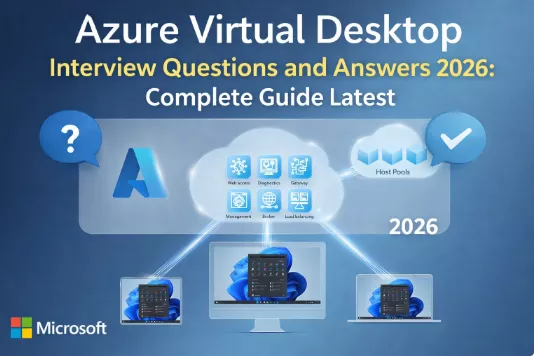
Azure Virtual Desktop (AVD) Interview Questions and Answers 2026: Complete Guide
Introduction
Azure Virtual Desktop (AVD) has revolutionized how organizations deliver virtual desktop infrastructure (VDI) solutions. As we progress through 2026, the demand for skilled AVD architects, administrators, and engineers continues to surge. This comprehensive guide provides the most relevant Azure Virtual Desktop interview questions to help you excel in your next technical interview.
What is Azure Virtual Desktop?
Azure Virtual Desktop is Microsoft's cloud-based desktop and application virtualization service running on Azure. It provides a modern, secure way to deliver virtual desktops and remote applications to users from anywhere, on any device. AVD offers unique capabilities including Windows 10/11 multi-session support, optimizations for Microsoft 365 apps, and seamless integration with Azure services.
Basic Azure Virtual Desktop Interview Questions
1. What are the key components of Azure Virtual Desktop architecture?
Azure Virtual Desktop consists of several essential components:
Host Pools: Collections of identical virtual machines that serve as session hosts for users. Host pools can be pooled (multi-session) or personal (single-session).
Workspaces: Logical groupings of application groups that organize resources for users.
Application Groups: Collections of applications or desktops made available to users. Types include desktop application groups and RemoteApp application groups.
Session Hosts: Virtual machines that run Windows 10/11 multi-session or Windows Server operating systems and host user sessions.
Control Plane: Microsoft-managed service handling connection brokering, diagnostics, gateway services, and load balancing.
User Profiles: FSLogix profile containers storing user profiles on separate storage to provide consistent user experiences.
Azure Resources: Supporting infrastructure including virtual networks, storage accounts, domain services, and monitoring components.
2. What is the difference between pooled and personal host pools?
Pooled Host Pools provide multi-session capability where multiple users share session host resources simultaneously. Benefits include cost efficiency, centralized management, and optimal resource utilization. Ideal for task workers, call centers, and general productivity scenarios.
Personal Host Pools assign dedicated virtual machines to individual users providing a persistent desktop experience. Users return to the same VM each session with their customizations and installed applications intact. Best suited for power users, developers, and scenarios requiring administrative access or specialized applications.
The choice depends on user requirements, cost considerations, and application compatibility needs.
3. How does Azure Virtual Desktop licensing work?
AVD licensing requires:
Windows License: Users need eligible licenses such as Microsoft 365 E3/E5, Microsoft 365 F3, Windows E3/E5, or Windows VDA per-user licenses.
Azure Consumption: Organizations pay for Azure compute, storage, and networking resources consumed by session hosts and supporting infrastructure.
Additional Licenses: Depending on services used, you may need licenses for Microsoft Defender, Azure AD Premium, Intune, or specific applications.
Windows Server License: For Windows Server-based session hosts, appropriate RDS CALs are required unless using specific Microsoft 365 licenses.
External users accessing AVD require RDS Client Access Licenses (CALs) per device or per user unless accessing through eligible Microsoft 365 subscriptions.
4. What is FSLogix and why is it important for AVD?
FSLogix is a profile management solution that provides seamless user experience in non-persistent virtual desktop environments. Key benefits include:
Profile Containers: Store entire user profiles in VHD/VHDX containers attached at login, providing complete profile roaming.
Office Container: Separates Outlook OST and OneDrive cache into dedicated containers for improved performance.
Performance: Reduces login times significantly compared to traditional roaming profiles.
Application Compatibility: Ensures applications function correctly in multi-session environments.
Storage Efficiency: Reduces storage requirements and network traffic through differential disks and compression.
FSLogix is essential for AVD to provide persistent user experiences in pooled environments and optimize Microsoft 365 application performance.
5. Explain the different load balancing methods in Azure Virtual Desktop.
AVD offers two primary load balancing algorithms:
Breadth-First: Distributes new user sessions evenly across all available session hosts. Users are directed to session hosts with the fewest active sessions. This approach maximizes resource availability and is ideal for consistent workloads.
Depth-First: Fills session hosts to maximum capacity before directing users to the next session host. This consolidates users on fewer machines, allowing unused session hosts to be deallocated for cost savings. Best for variable workloads and cost optimization.
Selection depends on workload patterns, licensing considerations (per-core licensing), and cost optimization strategies. Both methods respect maximum session limits configured on host pools.
6. What are Application Groups and what types exist?
Application Groups organize and deliver resources to users in AVD. Two types exist:
Desktop Application Group: Provides full desktop access to users. Each host pool can have only one desktop application group. Users receive complete desktop environment access.
RemoteApp Application Group: Delivers individual applications to users without full desktop access. Multiple RemoteApp groups can exist per host pool. Applications appear as if running locally on the user's device.
Application groups are assigned to specific users or groups, enabling granular access control. A single host pool can serve both desktop and RemoteApp groups simultaneously, optimizing infrastructure utilization.
7. How does user authentication work in Azure Virtual Desktop?
AVD authentication involves multiple stages:
Azure AD Authentication: Users authenticate to Azure AD when accessing AVD resources through the web client, Windows client, or other supported endpoints.
Session Host Authentication: Upon connecting to a session host, users authenticate to the domain (Azure AD DS, AD DS, or hybrid Azure AD joined).
Single Sign-On: AVD supports SSO using Azure AD authentication to eliminate redundant password prompts.
Multi-Factor Authentication: Can be enforced through Azure AD Conditional Access policies for enhanced security.
Smart Card Authentication: Supported for organizations requiring certificate-based authentication.
Proper configuration of trust relationships between Azure AD and domain services is crucial for seamless authentication flows.
8. What is the purpose of the AVD control plane?
The AVD control plane is a fully managed Microsoft service providing critical infrastructure:
Connection Broker: Routes user connections to appropriate session hosts based on load balancing algorithms.
Gateway: Provides secure TLS-encrypted connections from external networks without requiring VPN.
Diagnostics: Collects telemetry and health data for troubleshooting and monitoring.
Web Access: Hosts the web client for browser-based AVD access.
Metadata Management: Stores configuration data for host pools, application groups, and workspaces.
Orchestration: Manages session lifecycle, resource allocation, and failover scenarios.
Organizations benefit from this managed service by reducing operational overhead while maintaining global availability and automatic updates.
Intermediate Azure Virtual Desktop Interview Questions
9. How do you implement disaster recovery for Azure Virtual Desktop?
A comprehensive AVD disaster recovery strategy includes:
Session Host Redundancy: Deploy session hosts across multiple Azure regions or availability zones for geographic redundancy.
Profile Backup: Implement backup solutions for FSLogix profile containers using Azure Backup or third-party solutions with replication to secondary regions.
Image Management: Maintain golden images in multiple regions using Azure Compute Gallery (formerly Shared Image Gallery) with replication.
Infrastructure as Code: Use ARM templates, Bicep, or Terraform for rapid environment recreation in disaster scenarios.
Database Replication: If using applications with backend databases, implement geo-replication or backup/restore capabilities.
Testing: Regularly test failover procedures and document recovery time objectives (RTO) and recovery point objectives (RPO).
User Communication: Establish communication plans and alternative workspace URLs for disaster scenarios.
Azure Site Recovery: Can be used for session host replication though cost implications should be evaluated.
10. Explain the process of creating and managing custom images for AVD.
Custom image management workflow:
Base Image Creation:
- Deploy a VM with desired OS (Windows 10/11 multi-session or Server)
- Install applications, updates, and configurations
- Apply security hardening and optimizations
- Run Windows Update and restart
Image Optimization:
- Execute Virtual Desktop Optimization Tool (VDOT)
- Disable unnecessary services and features
- Configure registry settings for optimal performance
- Remove temporary files and clean up
Sysprep and Capture:
- Run Sysprep to generalize the image
- Deallocate the VM
- Capture as managed image or add to Azure Compute Gallery
Distribution:
- Share images across subscriptions using Azure Compute Gallery
- Enable replication to multiple regions
- Configure versioning for image lifecycle management
Deployment:
- Reference custom images when creating host pools
- Use image versions for controlled rollouts
- Implement update cycles for security patches
Maintenance:
- Establish regular update schedules
- Test new images in pilot host pools
- Document installed applications and configurations
11. What are Azure Virtual Desktop insights and how do you use them?
Azure Virtual Desktop Insights (AVD Insights) provides comprehensive monitoring using Azure Monitor and Log Analytics:
Key Metrics Monitored:
- Connection success rates and failures
- Session host performance (CPU, memory, disk)
- User session data including connection duration
- Application performance and reliability
- Network latency and round-trip time
Implementation:
- Configure diagnostics settings on AVD resources
- Deploy Log Analytics workspace
- Enable AVD Insights workbook in Azure Monitor
- Configure data collection rules for session hosts
- Install Log Analytics agents on session hosts
Use Cases:
- Proactive identification of performance bottlenecks
- Troubleshooting user connection issues
- Capacity planning based on usage trends
- Security monitoring and anomaly detection
- Compliance reporting and audit trails
Custom Dashboards:
- Create custom queries using KQL (Kusto Query Language)
- Build Power BI reports from Log Analytics data
- Set up alerts for critical metrics
- Integrate with ITSM tools for incident management
12. How do you optimize Azure Virtual Desktop performance?
Performance optimization requires a holistic approach:
Session Host Optimization:
- Use VM sizes with premium storage capabilities
- Enable accelerated networking on NICs
- Right-size VMs based on workload requirements
- Use proximity placement groups for latency-sensitive applications
- Implement Azure Boost compatible VM series for enhanced performance
Profile Management:
- Optimize FSLogix settings (VHD compaction, Cloud Cache)
- Place profile containers on high-performance storage
- Implement profile size limits and exclusions
- Use separate containers for Office data
- Enable concurrent connections for Cloud Cache scenarios
Network Optimization:
- Deploy session hosts in regions closest to users
- Use Azure Virtual WAN for global connectivity
- Implement RDP Shortpath for reduced latency
- Configure quality of service (QoS) policies
- Optimize ExpressRoute or VPN configurations
Image Optimization:
- Run Virtual Desktop Optimization Tool
- Disable Windows Search and Superfetch
- Configure appropriate power plans
- Remove unnecessary applications and services
- Optimize Windows Defender scan schedules
Application Optimization:
- Use App-V or MSIX App Attach for application delivery
- Implement OneDrive Files On-Demand
- Configure Teams media optimization
- Use RemoteApp for specific applications instead of full desktop
Monitoring and Tuning:
- Continuously monitor performance metrics
- Adjust session limits based on actual usage
- Implement autoscaling to match demand
- Review and optimize resource allocation regularly
13. What is MSIX App Attach and how does it work?
MSIX App Attach dynamically delivers applications to user sessions without installing them directly on session hosts:
Technology Foundation:
- Applications packaged in MSIX format
- Stored on network shares or Azure Files
- Mounted to user sessions using VHD/VHDX or CIM formats
- Presented as if locally installed
Benefits:
- Separates applications from OS layer
- Reduces image maintenance overhead
- Enables rapid application updates
- Decreases storage requirements
- Allows user-specific or group-specific application delivery
Implementation Process:
- Convert existing applications to MSIX format
- Create MSIX App Attach packages
- Store packages on accessible storage (Azure Files, SMB share)
- Configure staging, registration, and deregistration scripts
- Assign packages to host pools or application groups
- Test application functionality in AVD environment
Lifecycle:
- Stage: Package VHD mounted to OS
- Register: Application registered for user session
- Deregister: Application unregistered at logoff
- Destage: Package VHD dismounted
Not all applications support MSIX packaging, requiring compatibility assessment before implementation.
14. How do you implement Azure Virtual Desktop scaling plans?
Scaling plans automate session host power management for cost optimization:
Configuration Components:
- Schedule definitions (ramp-up, peak, ramp-down, off-peak)
- Minimum percentage of hosts during each phase
- Capacity thresholds triggering host activation
- Force logoff settings for off-peak periods
- Load balancing preferences per phase
Implementation Steps:
- Create scaling plan in Azure portal
- Define time zones and schedules
- Configure phase-specific settings
- Assign scaling plan to host pools
- Grant required permissions to AVD service principal
- Monitor scaling activities through diagnostics
Best Practices:
- Set appropriate session thresholds for ramp-up to handle morning surge
- Configure longer ramp-down periods to accommodate overtime users
- Enable notifications before forced logoffs
- Use exclusion tags for session hosts requiring persistent operation
- Test scaling plans in non-production environments first
Cost Optimization:
- Deallocate instead of shutting down for faster startup
- Consider start VM on connect for personal host pools
- Balance user experience with cost savings
- Review and adjust thresholds based on actual usage patterns
Limitations:
- Applies only to pooled host pools
- Requires appropriate Azure permissions
- May conflict with other automation solutions
15. What is RDP Shortpath and how does it improve AVD?
RDP Shortpath establishes direct network connectivity between clients and session hosts:
Traditional Path:
- Client → Internet → Azure Gateway → Session Host
- All traffic routes through Azure gateway infrastructure
- Increased latency from additional network hops
RDP Shortpath Path:
- Client → Direct Connection → Session Host
- UDP-based transport for reduced latency
- Falls back to TCP if UDP unavailable
Benefits:
- Reduced latency (typically 20-50ms improvement)
- Improved user experience for latency-sensitive applications
- Better Teams and multimedia performance
- Reduced gateway costs
- Lower bandwidth consumption
Requirements:
- Session hosts with public IPs or VPN/ExpressRoute connectivity
- UDP port range configuration (default 3390-3490)
- Network security group rules allowing UDP traffic
- Client support (Windows Desktop client)
Implementation:
- Configure session hosts with RDP Shortpath GPO or Intune policies
- Open required UDP ports on NSGs
- Enable on host pools
- Verify connectivity using connection diagnostics
Use Cases:
- Scenarios requiring minimal latency
- Branch office connections over ExpressRoute
- Remote workers with reliable internet
- Media-intensive applications
- Real-time collaboration tools
Advanced Azure Virtual Desktop Interview Questions
16. How do you implement Azure Virtual Desktop in a multi-region deployment?
Multi-region AVD architecture requires careful planning:
Architecture Design:
- Deploy separate host pools in each region
- Use Azure Compute Gallery for image replication
- Implement Azure Front Door or Traffic Manager for user routing
- Replicate FSLogix profiles using Azure Files with geo-replication or third-party solutions
- Configure regional virtual networks with peering or Virtual WAN
User Assignment Strategy:
- Geographic-based host pool assignment
- Active-active configuration for load distribution
- Active-passive configuration for disaster recovery
- User-based routing using Conditional Access
Profile Management:
- Azure Files with LRS in primary region and GRS for backup
- Cloud Cache configuration pointing to multiple storage accounts
- Profile replication using DFS-R or third-party tools
- Consider profile container permissions across regions
Networking:
- ExpressRoute circuits in each region
- Azure Virtual WAN for global transit connectivity
- Private endpoints for Azure services
- DNS configuration for service discovery
Identity:
- Azure AD for authentication across all regions
- Azure AD Domain Services with replica sets, or
- Distributed AD DS infrastructure with site-aware authentication
Monitoring:
- Centralized Log Analytics workspace or regional workspaces with aggregation
- Azure Monitor alerts configured for regional health
- Custom dashboards showing cross-region status
Challenges:
- Profile consistency across regions
- Licensing considerations for geo-redundant resources
- Latency for cross-region profile access
- Application licensing and activation across regions
17. Explain Azure Virtual Desktop networking architecture and best practices.
Comprehensive AVD networking requires multiple considerations:
Network Topology:
- Hub-and-spoke architecture with AVD in spoke VNets
- Dedicated subnet for AVD session hosts
- Separate subnets for management and supporting services
- Network security groups at subnet level
Connectivity Options:
Internet-only: Session hosts with internet access through NAT Gateway or Azure Firewall, suitable for cloud-only scenarios.
Hybrid Connectivity: ExpressRoute or Site-to-Site VPN connecting to on-premises resources, required for accessing corporate applications and file shares.
Private Endpoints: Azure services (Storage, Key Vault) accessible privately without internet exposure.
Security Controls:
- Azure Firewall or NVAs for egress filtering
- NSG rules restricting inbound access to required sources
- Application Security Groups for granular control
- Just-in-Time access for management
- Azure Bastion for secure administrative access
Name Resolution:
- Azure-provided DNS for Azure resources
- Custom DNS servers for hybrid scenarios
- Conditional forwarders for split DNS
- Azure Private DNS zones for private endpoints
Traffic Flow:
- User traffic: Client → AVD Gateway (Microsoft-managed) → Session Host
- Profile traffic: Session Host → FSLogix Storage
- Application traffic: Session Host → Backend services
- Management traffic: Administrators → Azure Portal/PowerShell
Bandwidth Planning:
- Typical user: 100-150 Kbps average, peaks to 500 Kbps
- Teams optimized media: 1.5-2 Mbps per stream
- Multiple monitors increase bandwidth requirements
- Consider bandwidth for profile loading and synchronization
Best Practices:
- Place session hosts in same region as Azure services
- Use ExpressRoute for predictable latency
- Implement QoS for multimedia traffic
- Monitor network performance continuously
- Document network dependencies and requirements
- Test failover scenarios for ExpressRoute/VPN
18. How do you secure Azure Virtual Desktop environments?
Comprehensive AVD security requires layered approach:
Identity and Access:
- Azure AD Conditional Access requiring MFA
- Risk-based authentication policies
- Privileged Identity Management for administrative access
- Azure AD Identity Protection monitoring
- Separate administrative accounts
Network Security:
- Private endpoints for Azure services
- NSG rules limiting traffic to required sources and destinations
- Azure Firewall with application and network rules
- DDoS protection for public IPs
- Disable RDP direct access from internet
Endpoint Security:
- Microsoft Defender for Endpoint on all session hosts
- Endpoint DLP policies preventing data exfiltration
- Application control using AppLocker or WDAC
- BitLocker encryption for OS disks
- Regular security updates and patching
Data Protection:
- Azure Information Protection labels
- FSLogix profile containers encrypted at rest
- Azure Storage encryption for profile storage
- Data classification and DLP policies
- Clipboard and drive redirection restrictions
Monitoring and Detection:
- Microsoft Sentinel for SIEM capabilities
- Azure Monitor alerts for suspicious activities
- Diagnostic logging for all AVD components
- Regular security assessments
- Vulnerability scanning
Application Security:
- MSIX App Attach for application isolation
- RemoteApp delivery minimizing attack surface
- Application allowlisting
- Regular application security patching
- Secure application configuration
Compliance:
- Azure Policy enforcement
- Regulatory compliance mappings
- Regular compliance audits
- Data residency requirements
- Audit logging and retention
Session Host Hardening:
- Remove unnecessary applications and features
- Disable unused services
- Configure host-based firewall
- Apply security baselines
- Regular security configuration reviews
19. What are the differences between Azure Virtual Desktop and Windows 365?
Key distinctions between AVD and Windows 365:
Management Model:
AVD: Infrastructure as a Service model where organizations manage virtual machines, networking, storage, and scaling. Requires Azure expertise and active management.
Windows 365: Managed Desktop as a Service where Microsoft manages infrastructure, updates, and underlying resources. Simplified management with predictable costs.
Pricing:
AVD: Pay-as-you-go for Azure resources consumed. Costs vary based on usage patterns and can be optimized through autoscaling.
Windows 365: Fixed per-user monthly pricing based on selected configuration. Predictable costs but less flexibility for optimization.
Customization:
AVD: Full control over VM sizes, configurations, networking, and all Azure capabilities. Highly customizable.
Windows 365: Limited customization with predefined configurations. Simplified but less flexible.
Scaling:
AVD: Dynamic scaling based on demand. Can scale to thousands of users.
Windows 365: Fixed assignment per user. Each user gets dedicated Cloud PC.
Use Cases:
AVD: Large enterprises, variable workloads, complex requirements, integration with existing Azure infrastructure, cost optimization needs.
Windows 365: Small to medium businesses, consistent workloads, simplified management requirements, bring-your-own-PC scenarios, predictable budgeting needs.
Session Types:
AVD: Supports multi-session (pooled) and single-session (personal) configurations.
Windows 365: Only personal, persistent desktops assigned per user.
Organizations may use both services based on different user personas and requirements.
20. How do you implement application delivery optimization in AVD?
Optimal application delivery strategy using multiple approaches:
MSIX App Attach:
- Dynamic application delivery without installation
- Rapid application updates and rollbacks
- Reduced image maintenance
- User or group-specific application assignment
- Best for modern applications supporting MSIX
App-V (Application Virtualization):
- Legacy application compatibility
- Application isolation preventing conflicts
- Centralized management
- Suitable for applications not supporting MSIX
- Sequencing required for each application
RemoteApp:
- Individual application delivery without full desktop
- Seamless window integration on client devices
- Reduced resource consumption
- Ideal for task workers needing specific applications
- Multiple RemoteApp groups per host pool
MSIX App Attach vs App-V:
- MSIX preferred for future-ready approach
- App-V for legacy compatibility
- MSIX provides better performance and modern management
- Both can coexist in same environment
Application Layering (Third-party):
- Solutions like Liquidware FlexApp or Citrix App Layering
- On-demand application delivery
- Persistent application layers
- Complex applications requiring full installation
Traditional Installation:
- Applications installed directly in golden image
- Simple deployment but increased maintenance
- Version updates require new images
- Best for universal applications required by all users
Selection Criteria:
- Application compatibility and requirements
- Update frequency and lifecycle
- User assignment granularity needs
- Management overhead tolerance
- Performance requirements
- Cost considerations
Hybrid Approach: Most environments benefit from combining methods - universal apps in image, frequently updated apps via MSIX, legacy apps via App-V, and specific tools via RemoteApp.
21. Describe Azure Virtual Desktop session host lifecycle management.
Comprehensive lifecycle management approach:
Image Creation Phase:
- Build golden image with base OS and universal applications
- Apply optimizations and security hardening
- Test thoroughly in isolated environment
- Capture and version in Azure Compute Gallery
- Document all installed components and configurations
Deployment Phase:
- Create host pool with custom image
- Configure FSLogix and required agents
- Join to domain (Azure AD, AD DS, or hybrid)
- Apply Group Policies or Intune configurations
- Validate all services and applications
- Conduct user acceptance testing
Operational Phase:
- Monitor performance and health
- Collect diagnostic data
- Manage user sessions
- Perform routine maintenance
- Apply emergency patches as needed
- Respond to incidents and issues
Update Phase:
- Regular security patching schedule
- Application updates and upgrades
- Windows Updates management
- Image refresh cycles (typically quarterly)
- Testing in pilot host pools before production
- Drain existing hosts before replacement
Retirement Phase:
- Graceful user migration to new hosts
- Session draining (preventing new connections)
- Backup of session host data if required
- Decommissioning and deletion
- Resource cleanup
- Documentation updates
Automation Strategies:
- Infrastructure as Code for consistent deployments
- CI/CD pipelines for image updates
- Automated testing of golden images
- Scripted session host replacement
- Automated scaling and management
Version Control:
- Image versioning strategy
- Rollback procedures for problematic updates
- Parallel running of old and new versions during transitions
- User communication about changes
Best Practices:
- Establish regular cadence for updates
- Maintain multiple image versions
- Test changes in non-production first
- Implement gradual rollout strategies
- Document all changes and configurations
- Use maintenance windows for disruptive updates
22. How do you troubleshoot Azure Virtual Desktop connection issues?
Systematic troubleshooting approach:
Initial Triage:
- Identify scope: single user, group, or widespread issue
- Gather error messages and codes
- Check service health dashboard for Azure outages
- Verify recent changes to environment
- Review user's licensing and assignments
Client-Side Diagnostics:
- Verify client application is updated
- Test alternate clients (web client vs desktop client)
- Check network connectivity and firewall rules
- Validate DNS resolution for AVD endpoints
- Review client-side logs and error messages
- Test from different networks to isolate issues
Authentication Issues:
- Verify user credentials and account status
- Check Azure AD sign-in logs for failures
- Review Conditional Access policy evaluation
- Confirm MFA functionality
- Validate token acquisition and renewal
- Test with alternate user account
Authorization Issues:
- Verify user is assigned to application group
- Check workspace associations
- Validate RBAC permissions
- Review group memberships
- Confirm host pool assignments
- Check for conflicting assignments
Session Host Issues:
- Verify session hosts are running and available
- Check domain join status
- Review session host agent status
- Validate FSLogix installation and configuration
- Check disk space and resource availability
- Review Windows Event Logs on session hosts
Network Connectivity:
- Test connectivity to session host from client subnet
- Verify NSG rules allow required traffic
- Check Azure Firewall or NVA rules
- Validate ExpressRoute or VPN connectivity
- Test DNS resolution for session hosts
- Review network latency and packet loss
Profile Issues:
- Verify FSLogix profile container accessibility
- Check storage account permissions
- Review profile container corruption
- Validate profile size within limits
- Test with new user profile
- Review FSLogix logs
Tools and Resources:
- AVD Insights for connection diagnostics
- Log Analytics queries for error patterns
- Connection Graphics diagnostic tool
- Azure Resource Health
- PowerShell for automated diagnostics
- Microsoft documentation and known issues
Resolution Documentation:
- Document issue symptoms and root cause
- Record resolution steps
- Update troubleshooting procedures
- Communicate with affected users
- Implement preventive measures
23. Explain Azure Virtual Desktop capacity planning methodology.
Comprehensive capacity planning approach:
User Profiling:
- Light users: Office apps, email, web browsing
- Medium users: Above plus multiple apps, occasional graphics
- Power users: Resource-intensive applications, multimedia, design tools
- Calculate user distribution across categories
Performance Metrics:
- CPU utilization per user type
- Memory consumption patterns
- Disk I/O requirements
- Network bandwidth usage
- Peak vs. average utilization
- Concurrent session expectations
VM Sizing:
Light Users: D2s_v5 (2 vCPU, 8GB RAM) supporting 6-8 users
Medium Users: D4s_v5 (4 vCPU, 16GB RAM) supporting 4-6 users
Power Users: D8s_v5 (8 vCPU, 32GB RAM) supporting 2-4 users
Adjust based on actual application requirements and testing.
Storage Planning:
OS Disks: Premium SSD for performance (128GB minimum)
FSLogix Profiles: Calculate based on average profile size × number of users × 1.5 growth factor
Storage Performance: Premium Files or NetApp for high-performance requirements
Backup Storage: Consider retention requirements for profile backups
Network Bandwidth:
- 150 Kbps per user average (baseline)
- Teams optimization: additional 1.5-2 Mbps per active call
- Peak usage multiplier (typically 2-3x average)
- ExpressRoute sizing based on maximum concurrent users
- Consider ingress traffic for profile loading
Peak Load Planning:
- Identify peak usage periods (morning login, lunch, end of day)
- Calculate concurrent users during peaks
- Add 20% buffer for growth and spikes
- Consider geographic distribution for global deployments
Testing and Validation:
- Deploy pilot environment with representative user sample
- Conduct load testing using tools like Login VSI
- Monitor actual resource utilization
- Adjust VM sizes and counts based on results
- Validate during peak load conditions
Growth Planning:
- Anticipate 20-30% annual user growth
- Plan for application changes increasing requirements
- Consider seasonal variations
- Budget for infrastructure expansion
Cost Optimization:
- Right-size VMs based on actual utilization
- Implement autoscaling for variable workloads
- Use Reserved Instances for predictable workloads
- Leverage Azure Hybrid Benefit
- Consider spot instances for non-critical workloads
Documentation:
- Capacity assumptions and calculations
- Per-user resource allocation
- Growth projections
- Cost models
- Review and update quarterly
24. How do you implement Teams optimization in Azure Virtual Desktop?
Teams optimization architecture and implementation:
How Media Optimization Works:
- Traditional: Media traffic routes through session host
- Optimized: Media traffic flows directly between client and Teams infrastructure
- Audio/Video processed on client device, not session host
- Dramatically reduces bandwidth and CPU on session hosts
Requirements:
- Windows Desktop client for AVD (not web client)
- Supported client operating system (Windows 10/11)
- Teams for VDI installed on session host
- WebRTC Redirector Service running on client
- Network connectivity to Teams services
Implementation Steps:
Session Host Configuration:
- Install Visual C++ Redistributable
- Install Remote Desktop WebRTC Redirector Service
- Install Teams for VDI (per-machine installation)
- Configure registry keys for optimization
- Exclude Teams from antivirus real-time scanning
Image Preparation:
- Include Teams and prerequisites in golden image
- Configure for per-machine installation (not per-user)
- Apply required registry settings
- Test optimization before image capture
Client Requirements:
- Latest Windows Desktop client
- WebRTC Redirector Service automatically installed
- Client-side hardware acceleration enabled
- Sufficient client resources for media processing
Verification:
- Check Teams About screen for "AVD Media Optimized"
- Monitor CPU usage during calls (should be minimal on session host)
- Test video, audio, and screen sharing functionality
- Verify media traffic using network monitoring
Troubleshooting:
- Review Teams diagnostic logs
- Check WebRTC Redirector Service status on client
- Verify registry settings on session host
- Test with different clients to isolate issues
- Review firewall rules for Teams URLs and IPs
Performance Benefits:
- 80-90% reduction in session host CPU during video calls
- Reduced network bandwidth to session host
- Improved call quality and latency
- Ability to support more concurrent users per session host
- Better user experience with local media processing
Limitations:
- Requires Windows Desktop client (no web client support)
- Some Teams features not optimized (live events, certain applications)
- Client device hardware quality impacts user experience
- Additional client-side bandwidth requirements
Best Practices:
- Document Teams optimization configuration
- Monitor client and session host performance
- Keep all components updated
- Test after AVD or Teams updates
- Provide user guidance on optimal client hardware
25. Design a complete Azure Virtual Desktop solution for a global organization.
Comprehensive solution design for 5,000 users across multiple regions:
Requirements Analysis:
- 5,000 users across North America (2,000), Europe (2,000), and Asia-Pacific (1,000)
- Mix of light (60%), medium (30%), and power users (10%)
- Applications: Microsoft 365, ERP system, design tools, custom LOB apps
- Compliance requirements: data residency, audit logging, encryption
- High availability and disaster recovery required
Architecture Design:
Regional Deployment:
- North America: East US 2 (primary), West US 2 (DR)
- Europe: West Europe (primary), North Europe (DR)
- Asia-Pacific: Southeast Asia (primary), East Asia (DR)
Host Pool Configuration:
Each region contains:
- Pooled host pool for light/medium users (multi-session)
- Personal host pool for power users (single-session)
- Separate host pools for different application requirements
Compute Resources:
Light/Medium Users: D4s_v5 VMs (4 vCPU, 16GB RAM)
- North America: 60 VMs supporting 1,800 users
- Europe: 60 VMs supporting 1,800 users
- Asia-Pacific: 30 VMs supporting 900 users
Power Users: D8s_v5 VMs (8 vCPU, 32GB RAM)
- North America: 67 VMs (200 users)
- Europe: 67 VMs (200 users)
- Asia-Pacific: 34 VMs (100 users)
Identity Architecture:
- Azure AD as primary identity provider
- Azure AD Domain Services with replica sets in each region
- Conditional Access enforcing MFA and device compliance
- Privileged Identity Management for administrative access
Storage Architecture:
- Azure Files Premium in each region for FSLogix profiles
- GRS replication for disaster recovery
- Separate storage accounts per region for performance
- Azure NetApp Files for high-performance requirements
- Profile containers: 30GB average per user
Networking Design:
- Hub-and-spoke topology per region
- Azure Virtual WAN connecting all regions
- ExpressRoute circuits in each region for hybrid connectivity
- Azure Firewall in each hub for centralized security
- Private endpoints for all Azure services
- RDP Shortpath enabled for optimal performance
Application Delivery:
- Microsoft 365 apps in golden image
- ERP system via RemoteApp
- Design tools via personal desktops
- Custom LOB apps via MSIX App Attach
- Regular application updates without image recreation
Security Implementation:
Identity Security:
- MFA required for all users
- Risk-based Conditional Access
- Session timeout policies
- Administrative access via PIM
Network Security:
- NSGs restricting traffic to required sources
- Azure Firewall with application and network rules
- No direct RDP access from internet
- Private endpoints for all Azure services
Endpoint Security:
- Microsoft Defender for Endpoint on all session hosts
- Endpoint DLP policies
- Regular vulnerability assessments
- Automated patch management
Data Protection:
- FSLogix profiles encrypted at rest
- Azure Information Protection labels
- Clipboard and drive redirection restrictions
- Data loss prevention policies
Monitoring and Management:
Monitoring Stack:
- Central Log Analytics workspace with regional collection
- AVD Insights workbooks for performance monitoring
- Microsoft Sentinel for security operations
- Custom alerts for critical metrics
- Power BI dashboards for executive reporting
Management Tools:
- Azure Automation for routine tasks
- Infrastructure as Code using Bicep
- Azure Policy for compliance enforcement
- Update Management for patch orchestration
- Service Health alerts for outage notifications
Disaster Recovery:
- Active-active configuration across regions
- FSLogix profile replication using Cloud Cache
- Automated failover using Traffic Manager
- Regular DR testing quarterly
- RTO: 4 hours, RPO: 1 hour
- Documented runbooks for failover procedures
Scaling and Cost Optimization:
- Autoscaling plans for each host pool
- Start VM on Connect for personal desktops
- Reserved Instances for baseline capacity
- Spot instances for burst capacity
- Azure Hybrid Benefit for licensing optimization
- Regular rightsizing reviews
Governance:
- Azure Policy enforcing organizational standards
- Resource tagging strategy for cost allocation
- RBAC with least privilege access
- Regular compliance assessments
- Change management procedures
- Documentation in centralized wiki
User Experience:
- RDP Shortpath for reduced latency
- Teams media optimization enabled
- FSLogix Cloud Cache for profile resilience
- Session timeout warnings
- Self-service password reset
- User training and documentation portal
Cost Estimation (Monthly):
- Compute: $150,000 (session hosts across all regions)
- Storage: $25,000 (FSLogix profiles and snapshots)
- Networking: $15,000 (ExpressRoute, data transfer, firewall)
- Licensing: Included in Microsoft 365 E5
- Monitoring: $5,000 (Log Analytics, Sentinel)
- Total: ~$195,000/month or $39 per user/month
Implementation Phases:
Phase 1 (Months 1-2): Infrastructure setup, networking, identity Phase 2 (Months 3-4): Pilot with 100 users per region Phase 3 (Months 5-6): Production rollout to 50% of users Phase 4 (Months 7-8): Complete rollout to all users Phase 5 (Month 9+): Optimization and continuous improvement
This comprehensive design addresses scalability, performance, security, compliance, and user experience requirements for a global enterprise AVD deployment.
Azure Virtual Desktop Best Practices for 2026
1. Adopt Infrastructure as Code
Use ARM templates, Bicep, or Terraform for consistent, repeatable deployments and easier disaster recovery.
2. Implement Multi-Region Architecture
Deploy across multiple Azure regions for high availability, disaster recovery, and optimal user experience globally.
3. Optimize Images Regularly
Maintain lean, optimized golden images with quarterly update cycles and thorough testing before production deployment.
4. Leverage Autoscaling
Implement scaling plans to optimize costs by automatically adjusting session host availability based on demand patterns.
5. Enable Comprehensive Monitoring
Deploy AVD Insights, custom Log Analytics queries, and proactive alerts to identify and resolve issues before user impact.
6. Secure by Default
Implement Zero Trust principles with Conditional Access, MFA, private endpoints, and endpoint protection on all resources.
7. Optimize User Profiles
Use FSLogix with proper configuration, implement profile size limits, and regularly clean up profile containers.
8. Plan for Capacity
Conduct regular capacity reviews, monitor performance trends, and proactively scale infrastructure before resource constraints.
9. Document Everything
Maintain comprehensive documentation of architecture, configurations, procedures, and troubleshooting guides.
10. Test Disaster Recovery
Regularly test failover procedures, validate backup restoration, and ensure documented runbooks are accurate and current.
Common Azure Virtual Desktop Challenges and Solutions
Challenge: High Latency and Poor Performance
Solution: Implement RDP Shortpath, deploy session hosts closer to users, enable Teams optimization, optimize FSLogix configurations, and review network connectivity quality.
Challenge: Profile Loading Takes Too Long
Solution: Optimize FSLogix settings, use premium storage tiers, implement exclusions for unnecessary folders, enable concurrent access with Cloud Cache, and reduce profile sizes.
Challenge: Image Management Complexity
Solution: Adopt MSIX App Attach for application delivery, automate image builds using CI/CD pipelines, maintain version control, and use Azure Compute Gallery for distribution.
Challenge: Cost Overruns
Solution: Implement autoscaling, rightsize VMs based on actual utilization, use Reserved Instances, enable Start VM on Connect, and regularly review spending patterns.
Challenge: User Connection Failures
Solution: Monitor AVD Insights for connection diagnostics, validate authentication flows, check network connectivity, review NSG rules, and ensure session host health.
Challenge: Security and Compliance Requirements
Solution: Implement Conditional Access, enable Microsoft Defender for Endpoint, use private endpoints, enforce encryption, maintain audit logs, and conduct regular security assessments.
Challenge: Application Compatibility Issues
Solution: Test applications thoroughly in AVD environment, use App-V for incompatible apps, consider application layering solutions, and maintain application compatibility documentation.
Challenge: Multi-Session Performance Degradation
Solution: Monitor per-user resource consumption, adjust session limits, optimize applications, implement resource scheduling, and consider increasing VM sizes.
Preparing for Your Azure Virtual Desktop Interview
Technical Preparation
- Set up personal AVD environment using Azure free trial or dev/test subscription
- Complete Microsoft Learn AVD learning paths and hands-on labs
- Practice deploying host pools, configuring FSLogix, and implementing security
- Gain experience with troubleshooting common issues
- Understand integration with other Azure services
Hands-On Skills to Demonstrate
- Creating and managing host pools
- Configuring FSLogix profile containers
- Implementing MSIX App Attach
- Setting up monitoring and diagnostics
- Troubleshooting connection issues
- Optimizing performance and costs
- Implementing security best practices
Architectural Knowledge
- Multi-region deployment strategies
- Networking architecture and connectivity options
- Identity integration scenarios
- Disaster recovery planning
- Capacity planning methodologies
- Cost optimization techniques
Stay Current with AVD Features
- Follow Azure updates and announcements
- Review AVD roadmap and preview features
- Participate in AVD community forums
- Read Microsoft documentation regularly
- Follow AVD experts and thought leaders
Soft Skills
- Explain technical concepts clearly
- Discuss real-world scenarios and solutions
- Demonstrate problem-solving approach
- Show understanding of business requirements
- Communicate trade-offs and recommendations
Scenario-Based Questions
Scenario 1: Regional Outage
Question: A region hosting your primary AVD environment experiences an outage. How do you handle this?
Answer: Implement disaster recovery architecture with secondary region containing pre-deployed host pools. Use Azure Traffic Manager or Front Door for automatic failover. Ensure FSLogix profiles replicate to secondary storage using GRS or active replication. Maintain documented runbooks for manual failover if needed. Test failover procedures quarterly. Communicate with users about backup workspace URLs. Monitor Azure Service Health for outage resolution and plan failback procedures.
Scenario 2: Performance Degradation
Question: Users report slow performance during peak hours. How do you investigate and resolve?
Answer: Check AVD Insights for performance metrics identifying bottlenecks. Review session host CPU, memory, and disk utilization. Examine FSLogix profile loading times. Check network latency and bandwidth utilization. Review concurrent session counts against capacity planning. Identify resource-intensive applications or processes. Implement immediate fixes like increasing VM sizes, adjusting session limits, or adding more session hosts. Long-term solutions include autoscaling, image optimization, and capacity planning adjustments. Monitor after changes to validate improvements.
Scenario 3: Security Breach
Question: A session host is compromised. What are your immediate actions?
Answer: Immediately isolate affected session host by removing from host pool or shutting down. Prevent new connections while allowing graceful session termination. Review Microsoft Sentinel and Defender alerts for threat indicators. Capture forensic data including memory dumps and disk snapshots. Identify compromise scope affecting other hosts or users. Reset credentials for potentially compromised accounts. Apply security patches or rebuild session host from clean image. Review and strengthen security controls preventing similar incidents. Conduct post-incident review documenting lessons learned. Notify stakeholders per incident response plan.
Conclusion
Azure Virtual Desktop represents the future of desktop virtualization, combining cloud scalability with enterprise-grade security and performance. Success in AVD roles requires deep technical knowledge, practical experience, and understanding of business requirements.
By thoroughly preparing with these interview questions, gaining hands-on experience, and staying current with AVD developments, you'll position yourself as a valuable AVD expert capable of designing, implementing, and managing enterprise-scale virtual desktop solutions.
For professional Azure Virtual Desktop consulting, implementation services, and training programs, visit www.cloudsoftsol.com to accelerate your AVD journey.