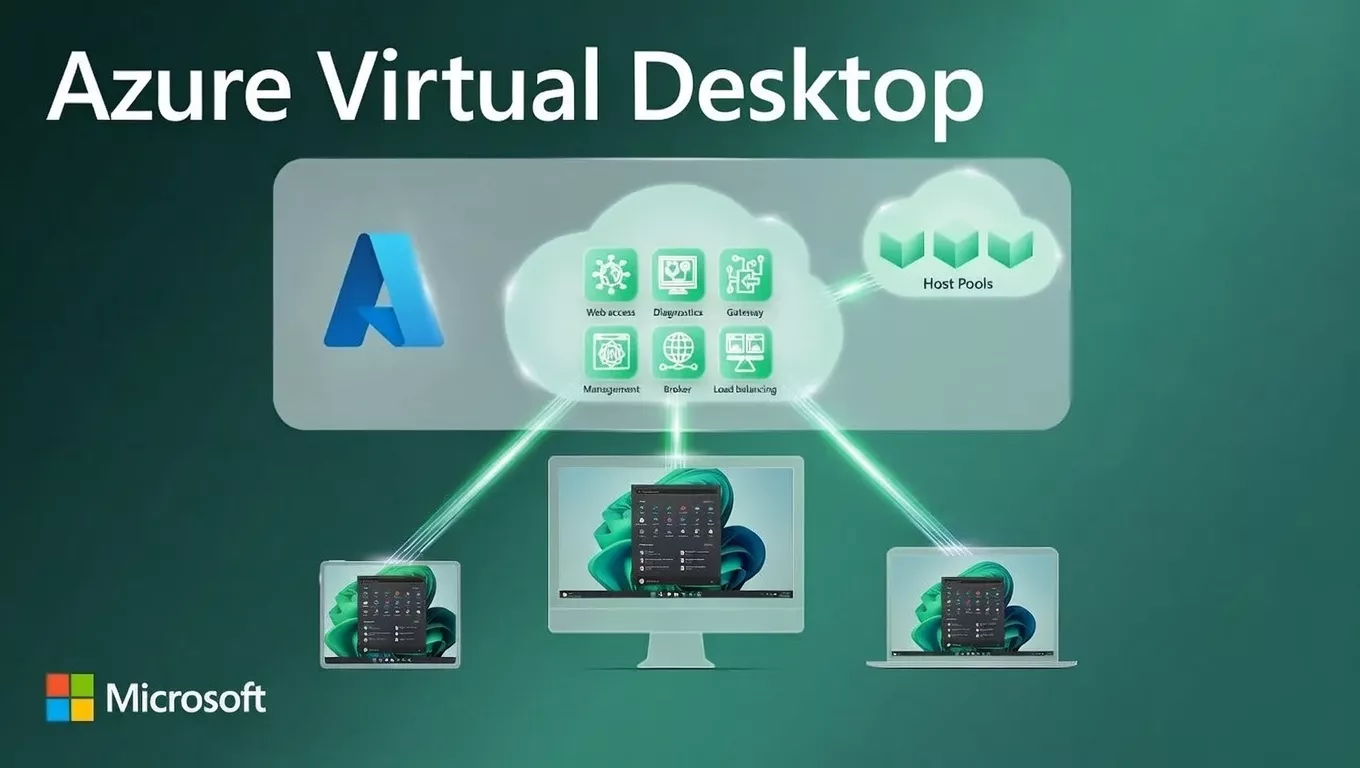
1. High-Level Requirement Assumptions
| Item | Value |
| Users | 2,000 |
| OS | Windows 11 Enterprise Multi-Session |
| Desktop Type | Pooled (primary) |
| User Profile | Persistent (FSLogix) |
| Access | Global / Hybrid |
| Authentication | Microsoft Entra ID |
| Productivity | Microsoft 365 + Teams |
| Security | Enterprise-grade |
2. Recommended Architecture (High Level)
Users
↓
AVD Client (Web / Desktop / Mobile)
↓
Microsoft AVD Control Plane (Free)
↓
Host Pool (Pooled – Windows 11 Multi-Session)
↓
Session Host VMs (Autoscaling Enabled)
↓
FSLogix Profiles (Azure Files Premium)
↓
Apps + Data (Azure / On-Prem via VPN or ExpressRoute)
📌 AVD Control Plane is Microsoft-managed (No cost, no infra).
3. Core Design Decision: Pooled vs Personal
Why Pooled Is Mandatory for 2,000 Users
| Factor | Pooled | Personal |
| VM Count | Low | Very High |
| Cost | ✅ Optimized | ❌ Expensive |
| Management | Simple | Complex |
| Scaling | Easy | Hard |
👉 Final Choice:
Windows 11 Multi-Session – Pooled Host Pools
4. Capacity Planning & VM Sizing
User Density Assumption (Real-World)
| User Type | Users per VM |
| Task / Office users | 12–15 |
| Power users | 6–8 |
Example Calculation
- Average: 10 users per VM
- Total users: 2,000
- Required VMs: ~200 Session Hosts
Recommended VM Sizes
| VM Size | Use Case |
| D8s_v5 (8 vCPU, 32 GB RAM) | Standard users |
| D16s_v5 | Power users |
💡 Never oversize VMs – density matters more than raw power.
5. Host Pool Design (Critical)
A. Multiple Host Pools (Best Practice)
| Host Pool | Users | Purpose |
| HP-Office | 1,400 | Standard users |
| HP-Power | 400 | Power users |
| HP-Admin | 200 | IT / Admin |
Benefits:
- Better performance
- Easier scaling
- Targeted cost control
B. Availability Zones
- Spread VMs across Availability Zones
- Protects against datacenter failure
- Zero impact on users
6. Profile Management – FSLogix (Mandatory)
Why FSLogix Is Required
| Feature | Benefit |
| Profile Containers | Fast login |
| App settings persistence | User experience |
| Works with pooled desktops | ✅ |
Storage Design
| Option | Recommendation |
| Azure Files Premium | ✅ Best |
| Azure NetApp Files | Optional (High performance) |
💡 One FSLogix share can handle ~2,000 users if sized correctly.
7. Identity & Authentication (Prerequisites)
Mandatory Requirements
| Item | Required |
| Microsoft Entra ID | ✅ |
| Microsoft 365 License | ✅ |
| MFA | ✅ |
| Conditional Access | ✅ |
Optional (Hybrid)
| Component | Use |
| Azure AD Connect | On-prem AD sync |
| Kerberos / LDAP | Legacy apps |
8. Licensing Prerequisites (Very Important)
Supported Licenses
| License | Recommended |
| M365 Business Premium | Office users |
| M365 E3 | Power users |
| M365 F3 | Call centers |
📌 No RDS CAL required (Windows 11 multi-session).
9. Networking Architecture
A. Virtual Network Design
AVD-VNET
├── SessionHosts-Subnet
├── FSLogix-Subnet
├── Management-Subnet
B. Connectivity Options
| Scenario | Option |
| Internet only | Secure outbound |
| On-prem apps | Site-to-Site VPN |
| High performance | ExpressRoute |
10. Security Architecture (Enterprise Grade)
Endpoint Security
| Feature | Tool |
| Endpoint Protection | Defender for Endpoint |
| Identity | Conditional Access |
| Privileged Access | PIM |
| Data Protection | Purview |
Network Security
- NSGs (restrict east-west traffic)
- Private Endpoints for storage
- Disable public IPs on session hosts
11. Image Management Strategy
Golden Image (Mandatory)
| Tool | Use |
| Azure Image Builder | Image automation |
| Shared Image Gallery | Versioning |
Benefits:
- Faster scaling
- Standardized desktops
- Zero configuration drift
12. Autoscaling & Cost Optimization
Autoscaling Strategy
| Time | Behavior |
| Business hours | Scale out |
| Non-business | Scale in |
| Weekends | Minimum VMs |
💡 Savings: 40–60% on compute
13. Monitoring & Operations
Tools
| Area | Tool |
| Performance | Azure Monitor |
| User Experience | Log Analytics |
| Alerts | Azure Alerts |
| Login issues | AVD Insights |
14. Business Continuity & DR
Recommended Design
| Component | Strategy |
| Secondary Region | DR Host Pool |
| FSLogix | Geo-replication |
| Failover | DNS / Traffic Manager |
15. Pre-Requisites Checklist (Before Deployment)
Technical
✅ Azure Subscription
✅ Supported Region
✅ Entra ID Tenant
✅ Networking planned
✅ Storage account ready
Licensing
✅ M365 licenses assigned
✅ Teams enabled
✅ Windows Enterprise rights
Security
✅ MFA enforced
✅ Conditional Access policies
✅ Defender enabled
16. Simplified Architecture Summary (For Management)
“We will deliver Windows 11 desktops to 2,000 users using pooled Azure Virtual Desktop with multi-session VMs, centralized profile management, autoscaling, and enterprise security—ensuring high performance, scalability, and optimized cost.”
17. Interview / Client Explanation (One Line)
A 2,000-user AVD environment should use Windows 11 multi-session pooled host pools, FSLogix profiles, autoscaling, and segmented host pools to ensure performance, security, and cost efficiency.
Part 1: Exact VM Sizing Calculator for 2,000 AVD Users
(Windows 11 Enterprise Multi-Session)
Step 1: Classify Users (MOST IMPORTANT)
Never size AVD assuming all users are the same.
Standard Enterprise User Classification
| User Type | Typical Workload | % of Users |
| Task Users | Email, browser, ERP | 50% |
| Knowledge Workers | Office, Teams, Power BI | 35% |
| Power Users | Dev tools, heavy apps | 15% |
For 2,000 Users
| User Type | Count |
| Task Users | 1,000 |
| Knowledge Users | 700 |
| Power Users | 300 |
Step 2: Per-User Resource Consumption (Real World)
| User Type | vCPU | RAM |
| Task User | 0.5 vCPU | 2 GB |
| Knowledge User | 0.75 vCPU | 3 GB |
| Power User | 1.25 vCPU | 6 GB |
Step 3: Calculate Total Resource Requirement
CPU Requirement
(1000 × 0.5) + (700 × 0.75) + (300 × 1.25)
= 500 + 525 + 375
= 1,400 vCPU
RAM Requirement
(1000 × 2) + (700 × 3) + (300 × 6)
= 2000 + 2100 + 1800
= 5,900 GB RAM
Step 4: Select VM Sizes (Microsoft-Recommended)
Preferred VM Family
✅ Dv5 / Ev5 series (best price-performance for AVD)
| VM Size | vCPU | RAM |
| D8s_v5 | 8 | 32 GB |
| D16s_v5 | 16 | 64 GB |
Step 5: VM Count Calculation
Using D8s_v5 (Most Common)
Per-VM Capacity (Safe Density)
- 8 vCPU → 10–12 users
- 32 GB RAM → 10 users
👉 We design for RAM safety → 10 users / VM
Total VMs Required
2000 users ÷ 10 users per VM = 200 VMs
Step 6: Final Host Pool Design (Recommended)
| Host Pool | Users | VM Size | VMs |
| HP-Task | 1,000 | D8s_v5 | 100 |
| HP-Knowledge | 700 | D8s_v5 | 70 |
| HP-Power | 300 | D16s_v5 | 30 |
| Total | 2,000 | 200 |
✅ Balanced
✅ Cost-optimized
✅ Performance-safe
Step 7: Add Autoscaling (Huge Cost Saver)
| Time | Running VMs |
| Peak hours | 100% |
| Business hours avg | 70% |
| Night | 20–30% |
| Weekends | 10–15% |
💡 Result: ~45–60% compute cost reduction
Step 8: Storage & FSLogix Sizing
Profile Storage
| Item | Value |
| Avg profile size | 5 GB |
| Users | 2,000 |
| Total | ~10 TB |
✅ Use Azure Files Premium
✅ Enable Private Endpoint
One-Line Sizing Summary (Interview / Client)
“For 2,000 users, we design ~200 Windows 11 multi-session VMs using pooled host pools, segmented by workload, with autoscaling to reduce cost by nearly 50%.”
🔐 Part 2: Zero Trust Security Design for Azure Virtual Desktop
Zero Trust Principle Applied to AVD
Never trust, always verify – identity, device, location, and session
1. Identity-First Security (FOUNDATION)
Microsoft Entra ID (Mandatory)
| Control | Implementation |
| MFA | Enforced for all AVD users |
| Conditional Access | Yes |
| Passwordless | Optional (FIDO2) |
| Identity Protection | Risk-based access |
2. Conditional Access Design (AVD-Specific)
Example CA Policies
| Scenario | Rule |
| External access | MFA required |
| Unknown device | Block |
| Non-compliant device | Block |
| Privileged users | MFA + compliant device |
| Legacy auth | Block |
💡 AVD trusts Entra ID, not the network
3. Device Trust (Endpoint Security)
Allowed Access Only From:
- Intune-compliant devices
- Defender-healthy devices
| Tool | Purpose |
| Microsoft Intune | Device compliance |
| Defender for Endpoint | Threat protection |
4. Network Zero Trust (AVD Best Practice)
Key Rules
❌ No public IPs on session hosts
❌ No inbound RDP (3389)
✅ Outbound-only internet
✅ Private Endpoints for storage
Architecture
User
↓
AVD Gateway (Microsoft)
↓
Private Session Hosts
5. Data Protection (Inside AVD)
| Feature | Tool |
| Clipboard control | AVD policies |
| Drive redirection | Restrict |
| DLP | Microsoft Purview |
| Encryption | Azure Disk Encryption |
6. Privileged Access Management
| Role | Control |
| AVD Admin | PIM |
| VM Admin | Just-in-Time |
| Global Admin | MFA + Approval |
7. Monitoring & Threat Detection
| Area | Tool |
| User sign-ins | Entra logs |
| VM security | Defender |
| Alerts | Azure Monitor |
| AVD health | Log Analytics |
Zero Trust AVD Architecture (Summary)
User
↓ (MFA + CA)
Entra ID
↓
AVD Gateway
↓
Private Host Pools
↓
FSLogix (Private Endpoint)
One-Line Zero Trust Explanation (Very Important)
“In AVD, Zero Trust means access is granted based on identity, device health, and risk—not network location.”
Azure Virtual Desktop (AVD) – Sizing Interview Questions
1. How do you size Azure Virtual Desktop for a large user base?
Answer:
AVD sizing starts by classifying users (task, knowledge, power), estimating per-user CPU and RAM, selecting Windows 11 multi-session pooled desktops, calculating user density per VM, and adding autoscaling. Storage and FSLogix profile sizing are also included.
2. Why is Windows 11 multi-session preferred for AVD sizing?
Answer:
Windows 11 multi-session allows multiple users on a single VM, reducing VM count, compute cost, and management overhead compared to single-session desktops.
3. How many users can a single Windows 11 multi-session VM support?
Answer:
Typically 8–15 users per VM, depending on:
- VM size
- User workload
- Teams usage
- Profile size
Design should always be RAM-based rather than CPU-based.
4. Which VM series is recommended for AVD and why?
Answer:
Dv5 and Ev5 series are recommended because they provide:
- Better price-performance ratio
- Optimized memory-to-CPU balance
- Latest Azure hardware suitable for multi-session workloads
5. How do you size RAM and CPU for AVD users?
Answer:
Typical sizing:
- Task user: 0.5 vCPU, 2 GB RAM
- Knowledge user: 0.75 vCPU, 3 GB RAM
- Power user: 1–1.25 vCPU, 6–8 GB RAM
RAM is the primary constraint in multi-session environments.
6. How does autoscaling impact AVD sizing?
Answer:
Autoscaling dynamically starts and stops session hosts based on user load and time schedules, allowing designs for peak capacity while paying only for active usage—saving up to 60% on compute costs.
7. How do you design host pools for 2,000 users?
Answer:
By creating multiple pooled host pools segmented by workload:
- Task users
- Knowledge users
- Power users
This improves performance isolation, scalability, and cost control.
8. Why is FSLogix mandatory in AVD sizing?
Answer:
FSLogix provides profile containers, enabling fast logins, profile persistence, and consistent user experience in pooled environments. Without FSLogix, multi-session desktops are not production-ready.
9. How do you size FSLogix storage?
Answer:
Estimate average profile size (e.g., 5 GB per user) × total users, add growth buffer (20–30%), and use Azure Files Premium or Azure NetApp Files for performance.
10. What is the biggest sizing mistake in AVD?
Answer:
Over-allocating VM size instead of optimizing user density and not enabling autoscaling, which leads to unnecessary Azure cost.
🔐 Azure Virtual Desktop – Zero Trust Interview Questions
11. What does Zero Trust mean in Azure Virtual Desktop?
Answer:
Zero Trust means access is granted based on identity, device health, and risk signals—not network location. Every AVD session is continuously verified.
12. How is identity secured in an AVD Zero Trust model?
Answer:
Using Microsoft Entra ID with:
- Mandatory MFA
- Conditional Access
- Risk-based sign-in policies
- Role-based access control (RBAC)
13. How does Conditional Access protect AVD?
Answer:
Conditional Access enforces rules such as:
- MFA for external access
- Blocking non-compliant devices
- Restricting risky sign-ins
- Limiting admin access with stronger controls
14. Are session host VMs exposed to the internet?
Answer:
No. Session hosts have no public IPs and no inbound RDP. All connections go through the Microsoft-managed AVD Gateway.
15. How is device trust enforced in AVD?
Answer:
By integrating:
- Microsoft Intune for device compliance
- Defender for Endpoint for threat health
Only compliant and healthy devices can access AVD.
16. How do you secure FSLogix storage in Zero Trust?
Answer:
By using:
- Private Endpoints
- Disabling public access
- Azure AD-based authentication
- Storage encryption at rest and in transit
17. How is privileged access handled in AVD?
Answer:
Using Azure PIM (Privileged Identity Management) with:
- Just-in-time role activation
- Approval workflows
- MFA enforcement
18. How do you prevent data exfiltration in AVD?
Answer:
By controlling:
- Clipboard redirection
- Drive redirection
- Print redirection
And using Microsoft Purview DLP policies.
19. How do you monitor security in an AVD environment?
Answer:
Using:
- Entra ID sign-in logs
- Defender for Endpoint
- Azure Monitor
- Log Analytics with AVD Insights
20. Explain Zero Trust AVD architecture in one sentence.
Answer:
Azure Virtual Desktop implements Zero Trust by authenticating every session through Entra ID with Conditional Access, routing traffic through Microsoft gateways, and securing workloads inside private Azure networks.
🎯 Architect-Level “One-Liners” (Very Important)
- “AVD sizing is RAM-driven, not CPU-driven.”
- “Multi-session pooled desktops are the key to cost optimization.”
- “In AVD, identity replaces the network perimeter.”
- “Session hosts are never internet-facing.”